
Git Graph
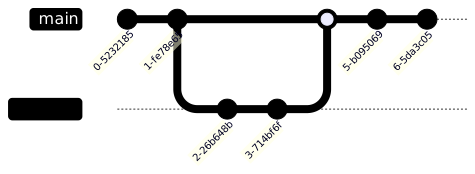
A git graph draws commits, branches, and merges the way git log --graph sees them — ideal for documenting branching strategies. kymo's editor reads the Mermaid gitGraph syntax.
This page works like a quickstart: as you scroll, the pane on the right shows the source and the preview for the section you're reading. Copy grabs the source; ▶ Open in editor loads it into editor.kymo.studio (pick mermaid in the diagram-type dropdown when starting from scratch).
The source reads like a shell session: commit adds a commit to the current branch, branch creates and checks out a new branch, checkout (or switch) moves, and merge joins another branch into the current one.
gitGraph
    commit
    commit
    branch develop
    checkout develop
    commit
    commit
    checkout main
    merge develop
    commit
    commit
Commit attributes
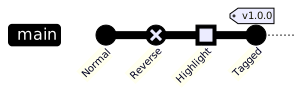
Each commit accepts an id: "…" (shown on the dot instead of a generated hash), a tag: "…" (drawn as a label), and a type: — NORMAL (default), REVERSE (crossed out), or HIGHLIGHT (filled square).
gitGraph
    commit id: "Normal"
    commit id: "Reverse" type: REVERSE
    commit id: "Highlight" type: HIGHLIGHT
    commit id: "Tagged" tag: "v1.0.0"
Branches and merges
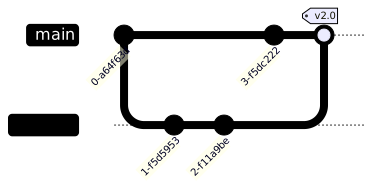
merge <branch> draws the merge commit on the current branch; like commit, it accepts id, tag, and type attributes. Branch names that clash with keywords can be quoted.
gitGraph
    commit
    branch feature
    commit
    commit
    checkout main
    commit
    merge feature tag: "v2.0"
Cherry-pick
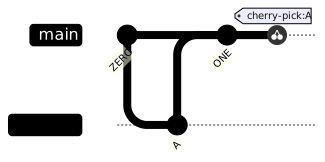
cherry-pick id: "A" copies an existing commit (by its id) onto the current branch — the source commit must be on another branch, just like the real command.
gitGraph
    commit id: "ZERO"
    branch develop
    commit id: "A"
    checkout main
    commit id: "ONE"
    cherry-pick id: "A"
Status. Git graph previews on this page and in the editor use the Mermaid renderer; importing git graphs into kymo's own pipeline (native SVG/PNG/PDF rendering) is on the roadmap.